
Voice Changer

Desktop audio

Use a free voice changer for PC with less setup

A free voice changer for PC can be useful when you want to test a different sound, prepare a recording, or shape audio before using it in another application. The key is choosing a simple workflow that keeps input, processing, and output easy to check.

Review output before sharing
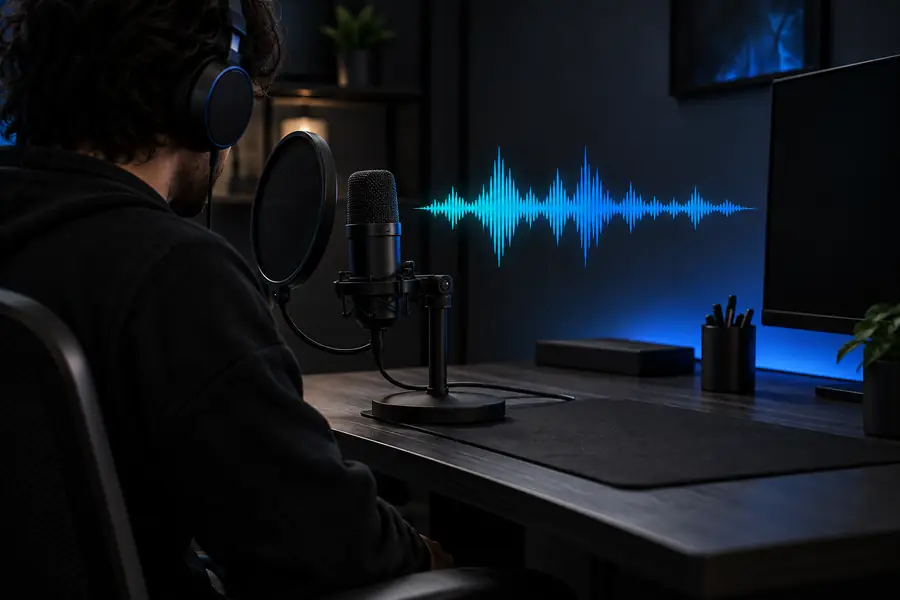
Desktop audio workspace with a microphone and waveform

How it works

Three steps from microphone to finished audio

A reliable desktop workflow separates the source recording from the processed result, so you can identify problems before they become part of a call, clip, or upload.

  1. 1

    Choose your input

    Select the microphone or recording you want to process, then speak a short test line at a steady volume. A clean source gives the voice changer more useful material to work with.

  2. 2

    Shape and review

    Apply a voice style or effect, listen for harshness and unwanted noise, and adjust the result in small steps. Save the version that sounds intentional rather than simply different.

  3. 3

    Use the result

    Bring the reviewed audio into your recording, stream, game session, or editing workflow. Keep the original take available so you can compare changes or start again.

Related paths

The best route depends on where you plan to work: in a browser, on a phone, or inside a broader voice workflow.

Use cases

A desktop voice workflow for different moments

The same basic process can support several kinds of audio work, as long as you test the result and respect the rules of the platform where it will be used.

The clip maker

You are preparing a short video and want a character voice that is distinct from the narration without rerecording every line.

Record a clean take, review the transformed version, and keep the original available for edits. The [voice changer for YouTube](/voice-changer-for-youtube/) page covers a publishing-focused workflow.

voice changer YouTube
The gamer

You want to experiment with a different voice during a private game session or while preparing a role-play clip.

Test the microphone before joining, keep the effect subtle enough to understand speech, and confirm the game or chat app receives the intended input. The [voice changer for Valorant](/voice-changer-for-valorant/) guide focuses on that channel.

voice changer for Valorant

The community host

You are recording a live discussion, skit, or group session and need a repeatable way to preview a changed voice before going on air.

Use a short rehearsal, compare dry and processed speech, and prepare a fallback recording. The [voice changer for Discord](/voice-changer-for-discord/) page is aimed at chat-based sessions.

voice changer for Discord

The audio learner

You want to understand how pitch, tone, and effects change the character of a spoken recording on a desktop.

Work from the same sentence each time, change one setting at a time, and note which result remains intelligible. The [voice changer with effects](/voice-changer-with-effects/) page expands on effect-led experimentation.

voice changer with effects

Before and after

Hear the difference between source and processed audio

A comparison is more useful than a dramatic preset preview. Start with the same spoken line, then judge whether the changed version still fits the purpose of the recording.

  • Original input
  • Processed output

Use the same sentence for both takes and compare clarity, volume, and character before sharing the result.

Unprocessed desktop voice recording workspace
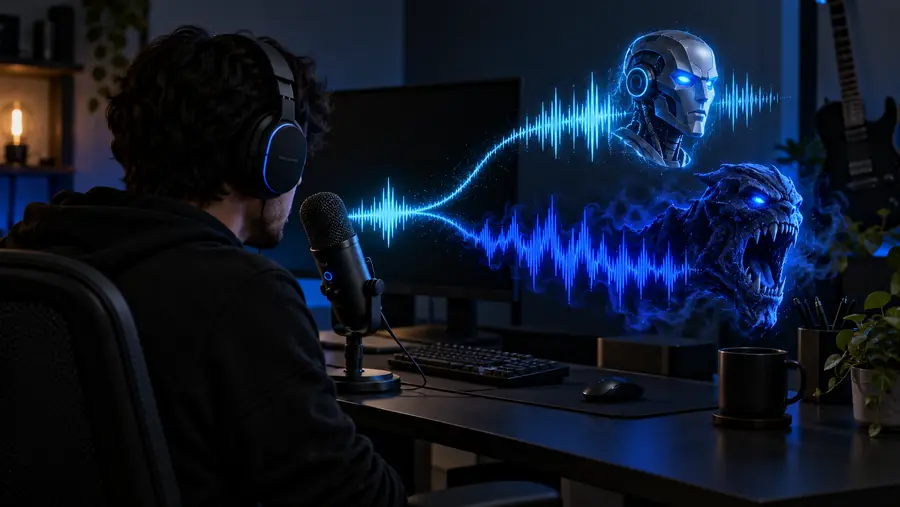
Processed voice recording workspace with a changed vocal character

Desktop checklist

Browser handoff or local PC workflow?

Neither route is automatically right for every task. Compare the practical trade-offs before choosing where to record, process, and review your voice.

1

Starting point

Browser handoff

Open the supported product route and describe or submit the intended task.

PC workflow

Begin with a microphone, recording, or audio source already available on the computer.

2

Setup effort

Browser handoff

Usually fewer local settings to inspect before the first test.

PC workflow

May require checking the selected input, output, and application permissions.

3

Best for

Browser handoff

Quick experiments and short sessions where convenience matters.

PC workflow

Repeatable recording, editing, and review across several desktop sessions.

4

Input control

Browser handoff

Depends on the handoff and the tools available in the chosen route.

PC workflow

Lets you inspect the source recording and repeat the same test line.

5

Review habit

Browser handoff

Preview the returned or generated result before using it elsewhere.

PC workflow

Compare the original and processed takes before placing audio in a project.

6

Main limitation

Browser handoff

The browser route may not match every live app or desktop input arrangement.

PC workflow

A PC workflow can take longer to configure when several applications share audio.

7

Good next step

Browser handoff

Try a short, specific voice task rather than a long recording.

PC workflow

Run a short microphone check, then save a clean source take.

Ready to test

Turn one short recording into a useful comparison

Start with a sentence you can repeat naturally, listen for clarity, and keep the original beside the changed version. The word free can describe an access expectation, but availability and limits depend on the product route you use, so review the result before committing it to a project.

Try the voice workflow
  • Begin with a short source recording
  • Change one aspect at a time
  • Review audio before sharing it

Common questions

Free voice changer for PC FAQ

These answers address the practical questions people usually ask before trying a desktop voice workflow.

It can help you test a different vocal character for recordings, role-play, gaming clips, or other creative audio tasks. Start with a short sample so you can check whether the result remains clear and suitable for its intended use.

Not necessarily. Some voice workflows begin in a browser or use a handoff to another product, while other setups rely on local PC audio controls; check the route you choose before planning a live session.

A microphone can provide the source signal for a desktop voice workflow, but the available input and output controls depend on the product and application. Test the selected microphone with a short sentence before recording anything important.

Begin with a clean recording at a steady volume and avoid stacking several strong effects at once. Compare the processed take with the original, then reduce settings that make speech harsh, muddy, or difficult to understand.

It may be suitable for some sessions, but live applications can have their own microphone permissions and input requirements. Test privately first, confirm that the correct source is selected, and follow the rules of the service or community where you use it.

Create a voice
Create a voice